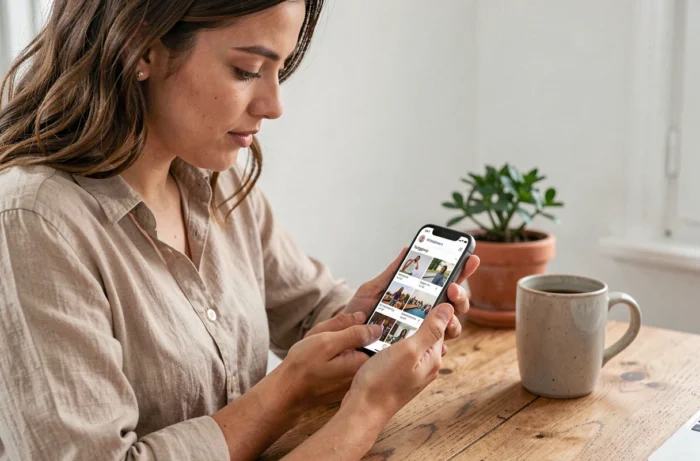
You find a beautiful photo in your Instagram feed, you want to save it on your phone, and then, nothing. No “Download” button. The “Save” button only adds the post to an internal list, accessible only within the app. No copy lands in your gallery. This discrepancy between what we think we are saving and what actually happens traps many users.
There are several methods to retrieve Instagram photos and videos on your device, whether the content is yours or from a public account. They vary depending on the type of file, the operating system, and the level of control desired.
Save Button on Instagram: Why Your Photos Aren’t Really Saved
The flag-shaped icon under each Instagram post can be confusing. Tapping it creates a bookmark in the app. The file never leaves Instagram’s servers. If the account that posted the photo deletes it or switches to private, your bookmark disappears with it.
Collections work in the same way. They organize your bookmarks by folder, but remain tied to your Instagram session. Without a connection, there’s no access. This distinction is the starting point for any local backup strategy.
For your own posts, Instagram offers an auto-save setting to your phone’s gallery. The wording varies by version: “Save original photos,” “Enregistrer les photos originales,” or “Saving to camera roll.” Enable this setting before posting so that every photo posted automatically copies to your camera roll. Find more Instagram tips on Lordy’s that detail this setting for each type of device.

Download Instagram Photos and Videos from a Public Account
When the post belongs to another user and their profile is public, the most direct method relies on a web downloader. The principle is always the same:
- Open the post in Instagram (app or browser), then copy its link via the share menu or the address bar.
- Paste this link into a downloading site (FastdlApp, iGram, SnapInsta, or equivalent). The service extracts the image or video file.
- Click the download button provided by the site. The file arrives in the “Downloads” folder on your device.
This approach works on computer, Android, and iPhone without installing any additional app. The browser is sufficient.
Two precautions to keep in mind. First, these tools only work with public accounts. A private profile blocks the extraction of the file. Second, the downloaded content remains subject to copyright: using it for commercial purposes or republishing it without permission poses a legal issue, even if the technical operation is simple.
Special Case of Reels and Stories
Reels can be downloaded in the same way as regular videos, via the post link. Stories, on the other hand, disappear after 24 hours. The link to a Story expires with it, making the web downloader useless if you don’t act within this timeframe.
For Stories, taking a screenshot (photo) or screen recording (video) remains the most reliable fallback solution. The quality will be lower than the source file, but you get a local copy independent of any remote server.
Browser Inspector: Download Without Third-Party Tools on Computer
Have you ever noticed the “Inspect” menu when you right-click on a web page? This browser function allows you to find the direct address of the image or video file displayed by Instagram.
Here’s how to proceed on a desktop browser (Chrome, Firefox, Edge):
- Open the Instagram post in your browser and right-click on the photo or video, then select “Inspect” or “Inspect Element.”
- In the panel that opens, look for the tag containing the media file URL (it usually ends with .jpg or .mp4).
- Copy this URL, open it in a new tab. The file will display alone. A right-click then “Save as” will copy it to your disk.
No extension or external site is involved in this method. It requires a bit more manipulation, but it works even if web downloaders are unavailable or blocked by your network.
Save All Your Instagram Data at Once
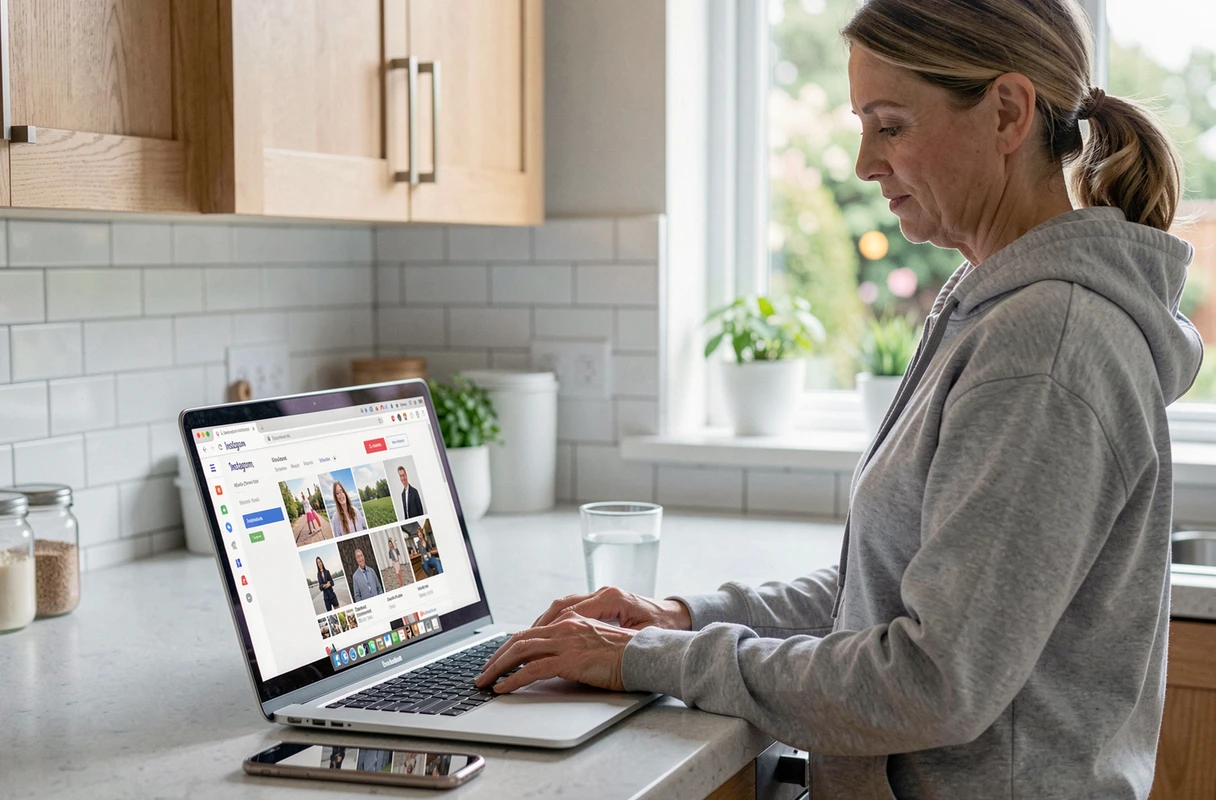
Instagram allows you to request a complete copy of your account. This feature, accessible in the settings under “Your Activity” then “Download Your Data,” generates an archive containing all your photos, videos, messages, and profile information.
The processing takes from a few minutes to several hours depending on the volume of your account. You receive a download link via email. The archive includes the original files in their published resolution, making it the best option for a global backup before deleting an account or migrating to another service.
This method only concerns your own content. No files published by other accounts are included in the archive.
When to Prefer the Archive Over Individual Downloads
Downloading post by post is suitable if you want to retrieve a few specific images. The complete archive becomes relevant as soon as you have published several hundred pieces of content, or if you want to keep a record of your messaging exchanges.
Combining both approaches covers most needs: global archive for your own media, web downloader or browser inspector to occasionally save a public content that interests you.
The screenshot remains the universal safety net. It works everywhere, on any device, without relying on a third-party tool or a feature that may change during an Instagram update. Its limitation is known: reduced quality compared to the original file. For personal use, this is more than sufficient.